Staff onboarding and account removal
Setting someone up meant remembering dozens of steps across six systems, and people who left could keep their access. Now it runs in order and checks itself afterwards.
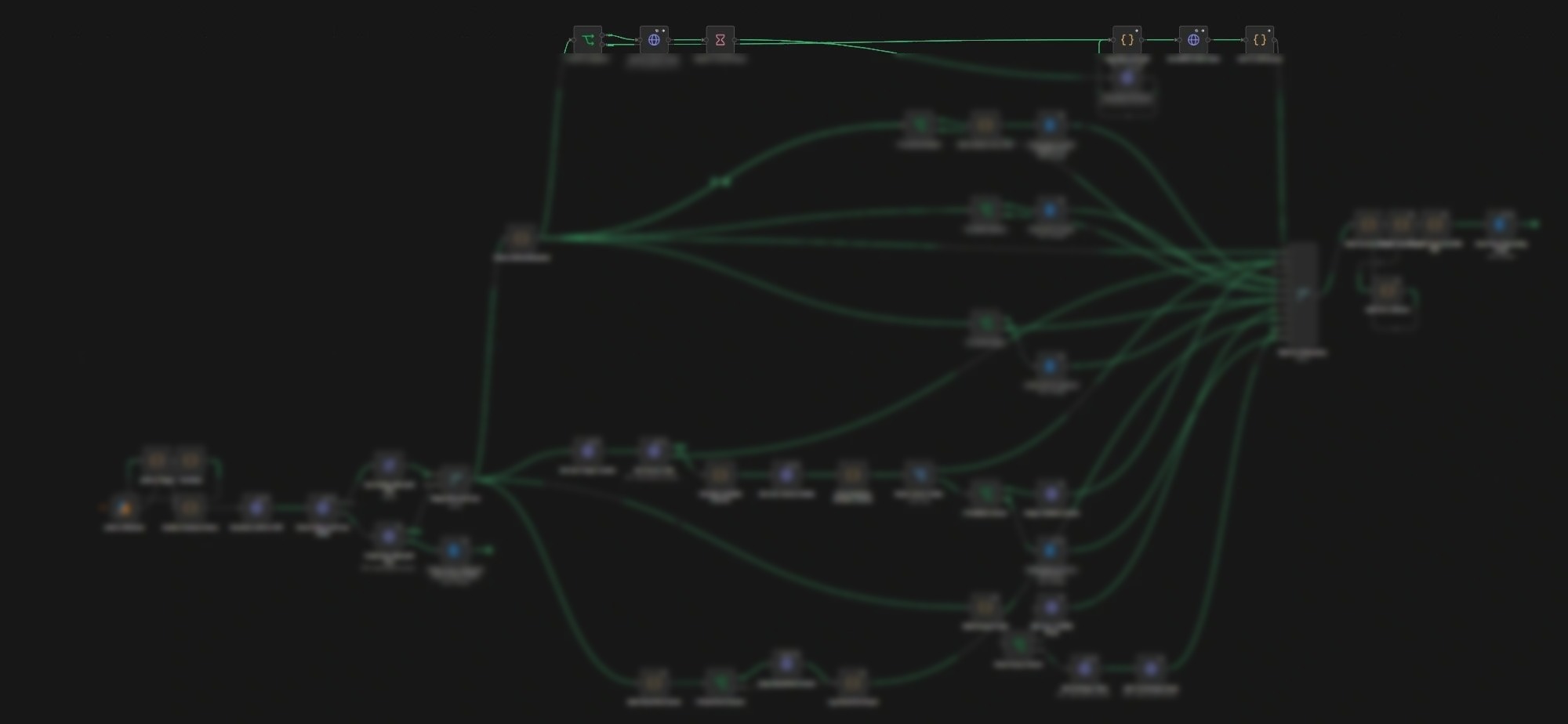
What was going wrong
Setting up a new employee meant manual steps across accounts, licences, groups, mailbox, phone and device. Someone who left could keep their access, because the checklist lived in one person’s head.
Why it mattered
New staff sat waiting for things they needed on day one. Worse, access that should have been switched off stayed on, and there was no dependable record of what had been created, changed or removed.
What it changed
About three hours of somebody’s time back on every new starter and every leaver. That was the setting up and the shutting off, done by hand across six systems. The bigger change is that a missed step now shows up the same day instead of turning up weeks later as access that should have been switched off.
Built with
How it works
When someone joins the business, this sets up everything they need for day one, in the right order. When someone leaves, it shuts off their access properly. Both write down exactly what they did.
The main screens
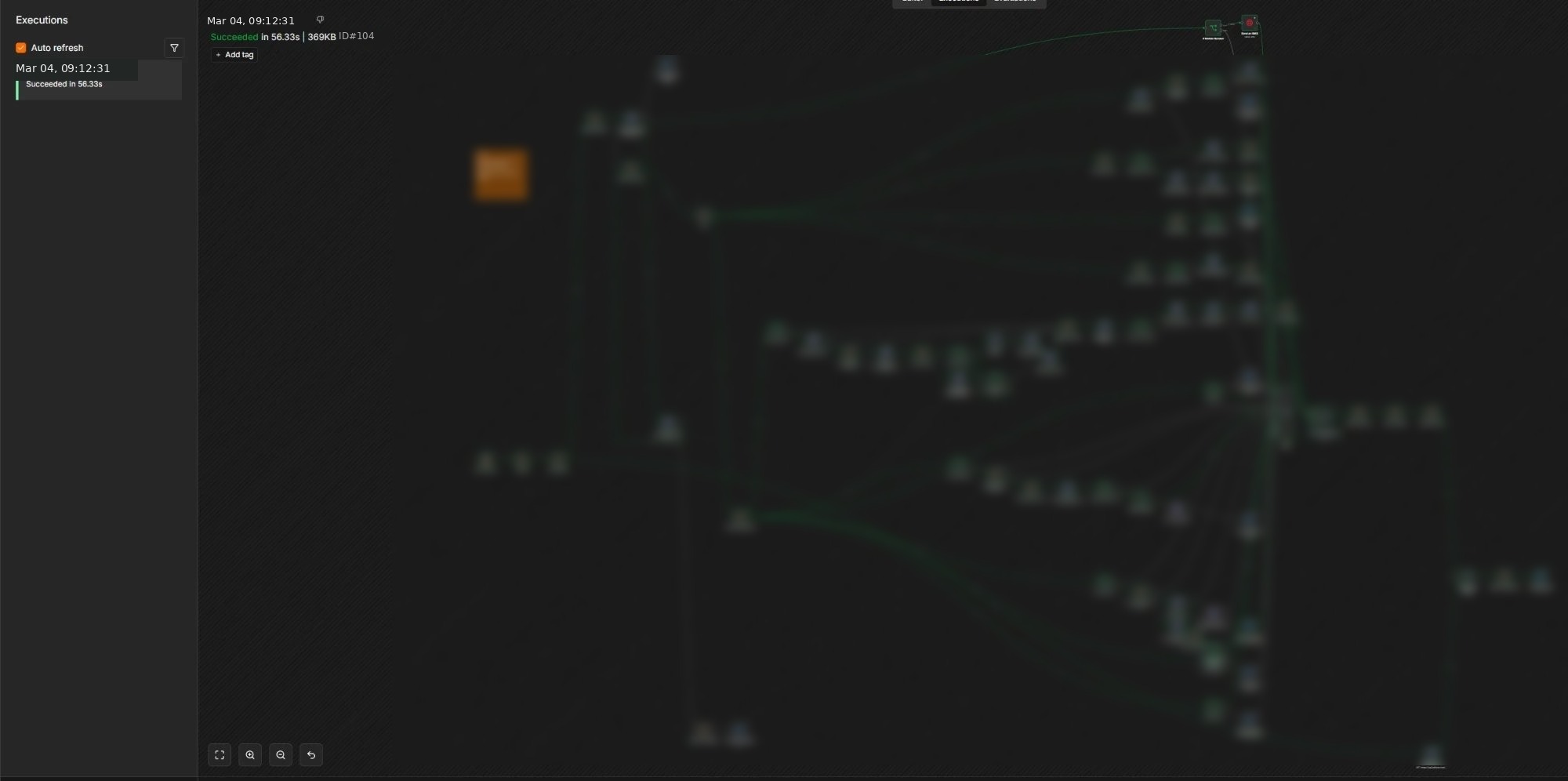
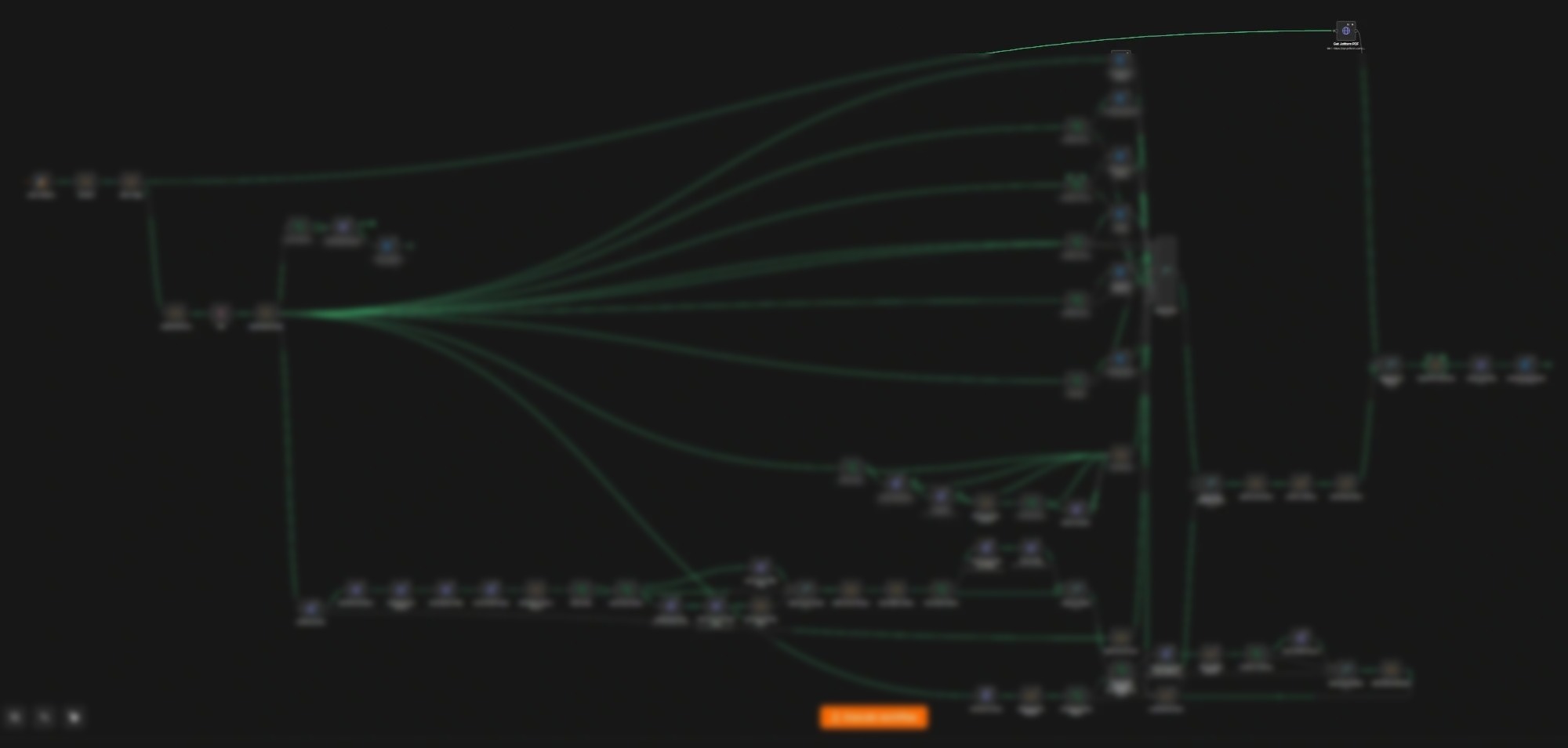
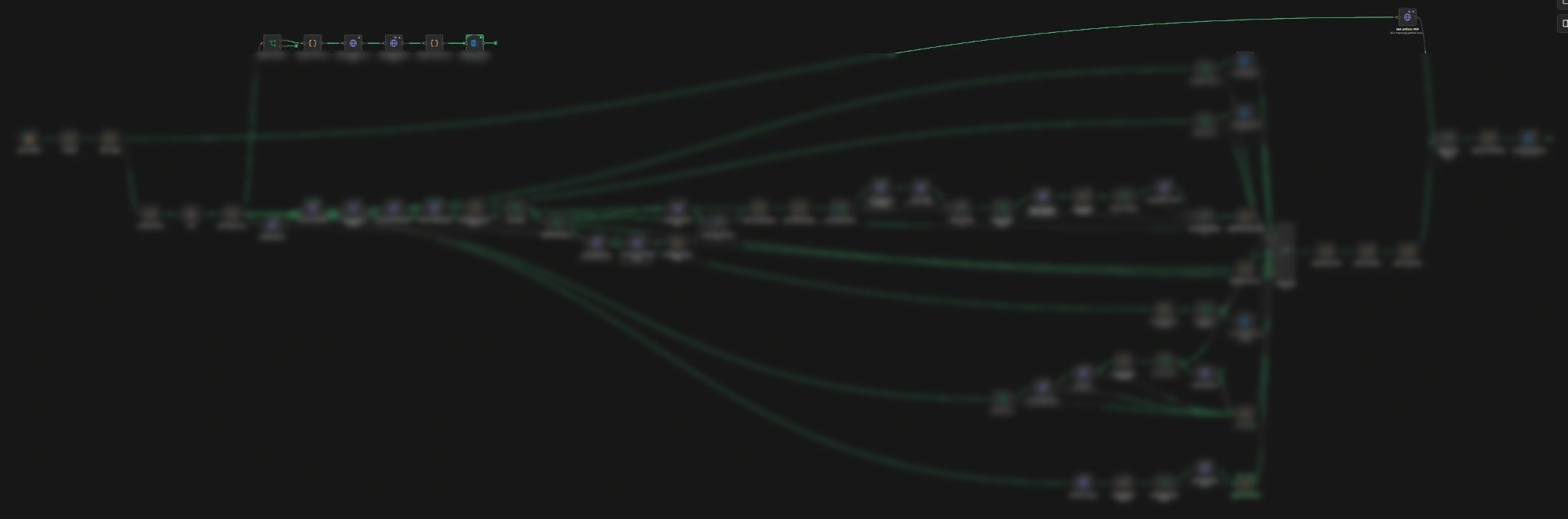
Everyday jobs
Set up a new starter
- Form: A manager fills in the new starter form. Once it is approved, every step below runs on its own, in order.
- Tidy up: It tidies up the person's name and saves a PDF copy of the form.
- Account: It checks whether they already have a work account in the email and identity platform. It uses that one, or makes a new one. If that fails, IT is told straight away.
- Licence: It sets their location, counts the spare licences (the paid right to use the software) and gives them one. If none are spare, it asks the IT provider to buy one.
- Access: It adds them to the right security groups and email lists, and opens up the shared file folders their role needs.
- Phone: It makes their softphone extension, waits for the phone system to catch up, fills in their profile and puts them in the right call queues.
- Other systems: It sets up or asks for every other system ticked on the form: a CRM seat (the customer system), an ERP login (the accounting and stock system), design software, their email signature and any industry software.
- Report: It waits for every branch to finish, then emails one report with the form attached. Anything only a person can do is listed at the top.
Shut off a leaver
- Fill in the leaver form, including their last working day.
- 5pm, last day The system waits until 5pm on that day, so they keep access for their whole last day.
- It blocks their sign-in, signs them out on every device and clears their email signature details.
- It takes them out of every security group and email list.
- It turns on an automatic reply if one was asked for. It can keep the mailbox as a shared mailbox for their manager, then it frees up the licence.
- It removes their softphone extension and their shared file access.
- It removes them from the email marketing list and checks it worked. It also removes them from the CRM, the ERP, design software, the meeting tool and any industry software, or asks the right person to.
- It puts every result into one report, attaches the leaver form and emails it to the person who asked.
Read the report
- Open the report email that arrives when the run finishes.
- Check each step's result. A failed step stays marked as failed, never counted as done.
- Look at Do these by hand for anything only a person can do, such as an office key fob.
- Check who each request went to, and when to chase it.
Still done by a person
- Anything only a person can do, such as an office key fob, is listed at the top of the report.
- If no licence is spare, it asks the IT provider to buy one.
Who can see what: Every run starts from a form a person has approved. Anything that costs money goes to a person as a request, and every step is written down, so there is always a record.
The technical detail
- 75+steps in the joiner process
- 55+steps in the leaver process
What I built
A joiner process of more than 75 steps and a leaver process of more than 55 steps, both live. Each one checks what it is given, takes a different path where it has to, sends the right people a message, deals with a step that fails, and writes down the result.
How it works
An approved form supplies the new person’s details. The steps then run in order: accounts, licences, groups, mail, files, phone and the customer system (a CRM). The leaver process runs at 5pm on the last day. Anything only a person can do is written into the report.
Where it got to
Both paths were tested with throwaway accounts, and the result was read back out of Microsoft 365, Exchange, SharePoint, the phone system and the customer system (a CRM). A run that fails stays on the screen rather than being counted as a success.
Please note: these are the real workflows. Names of people, suppliers and products are blurred, and no personal details appear in them.